
How do I use ChibiClock?
1. ChibiClock microSD layout
ChibiClock stores all of its pictures and video on the included microSD card.
ChibiClock has four ways it displays media:
- still picture slideshow as a clock background
- still picture slideshow as a clock background which changes depending on the time of day
- silent video background for the clock
- video with audio for the alarm
What it does with your files depends on where you put them.
ChibiClock needs pictures, sound, and video in a specific format, but don't worry, we give you tools to convert them.
ChibiClock has size limits on videos. They need to be 90 seconds or less. You can have as many still photos as you want, though.
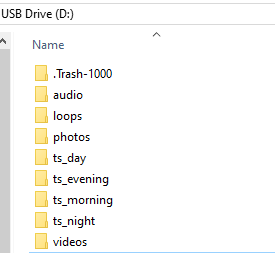
2. Folders on the microSD card
audio
- Used for the audio file that plays to help you set the alarm volume. That's all it does.
loops
- Used for the videos which can play as a clock background. They don't have to loop, but it looks good if they do. ChibiClock loads these alphabetically, so you can use that to put the videos into a specific order by naming them.
photos
- Used for the still image slideshow. Also loaded alphabetically.
ts_ folders
- Used for the time of day still image slideshow. Loaded alphabetically
- ts_morning: 0600 - 1200
- ts_day: 1200 - 1500
- ts_evening: 1500 - 1800
- ts_night: 1800 - 0600
videos
-
Used for alarms. Loaded alphabetically. You can make a "wake up narrative" by naming these so they sort alphabetically. ChibiClock will play them in order and then start over, until the alarm is cancelled.
3. First-time setup
- Plug ChibiClock into USB-C power
- ChibiClock has a battery but it's small and doesn't last long when the clock display is on.
- Turn ChibiClock on using the power button on the back - if the clock is facing you, it's the one on the right
- ChibiClock displays a welcome message telling you to connect to it over wifi
- Use a computer, phone, or laptop to connect to the "ChibiClock" access point
- When you connect, your web browser should open to a simple page
- Enter the name and password of your wifi, or check the box for not using wifi
- Use wifi if at all possible. It'll keep the time set for you, and you'll be able to get updates
- ChibiClock only connects to the internet for time and software updates, nothing more
4. Converting photos and video
Online converters:
- images: https://huggingface.co/spaces/quarterturn/chibiclock-image-convert
-
video: https://huggingface.co/spaces/quarterturn/chibiclock-video-converter
Note that the video converter will give you empty .aac sound files if your video had no sound to begin with. In the case of converting for background video, just delete the .aac files, you don't need them.
5. Using the clock and settings
Normally the clock displays the time, with some sort of background, unless
- An alarm is playing
- The display is in "off" schedule
When the above is true, the clock responds to the following touches:
- short-press anywhere on the screen
- turns off the alarm if playing
- turns on the screen for five seconds if it is off
- long-press anywhere on the screen
- brings up the menu system
Menus
Settings
- color - adjust the RGB sliders to set the color of the clock text
- volume - adjust the slider to set the alarm button
- text
- clock drop shador - adds a shadow behind the clock text
- clock background - adds a semi-transparent white rectangle behind the clock text
- clock 12 hour time - displays the time in 12-hour format
- font - choose the font for the time display
Video
- preview - allows you to select and preview an alarm video; touch the screen to cancel playback
- settings
- video background - displays videos in the loops folder as the background
- themed background - displays pictures from the ts_ folders depending on the time of day
- if neither is checked, the clock shows shows pictures from the photos folder
- video repeats - adjust the silder to set how many times each loop video plays
Schedules
- display - sets the on/off time for the display; if you set them to be the same, the display is always on
-
alarm1/alarm2 - sets the time for the alarm, and when the alarm should go off
Timedate
-
timedate - needs a long press
note: this is kind of a "don't mess with it unless you need to setting"
Allows you to manually set the time, revert to automatic time, or clear the wifi credentials- enter all zeros 00000000000000 - sets the clock back to automatic time and reboots it
- enter all nines 99999999999999 - clears the wifi credentials and reboots to the wifi portal where you can either enter new wifi credentials or set the clock to manual time
- enter the time in the following format YYYYMMDDhhmmss
YYYY - year
MM - month
DD - day
hh - hour
mm - minute
ss - second
- Note: if anything is less than 10 you have to add a zero in front of it, eg 9 is 09
Update - needs a long press
- checks for a software update, and allows you to install if there is
- check this website first to see if you should update
- we do our best to make sure updates don't cause issues but sometimes they might, so don't update without finding out what the update is for
